The MyRO client

Ragnarok, with the windows it was missing.

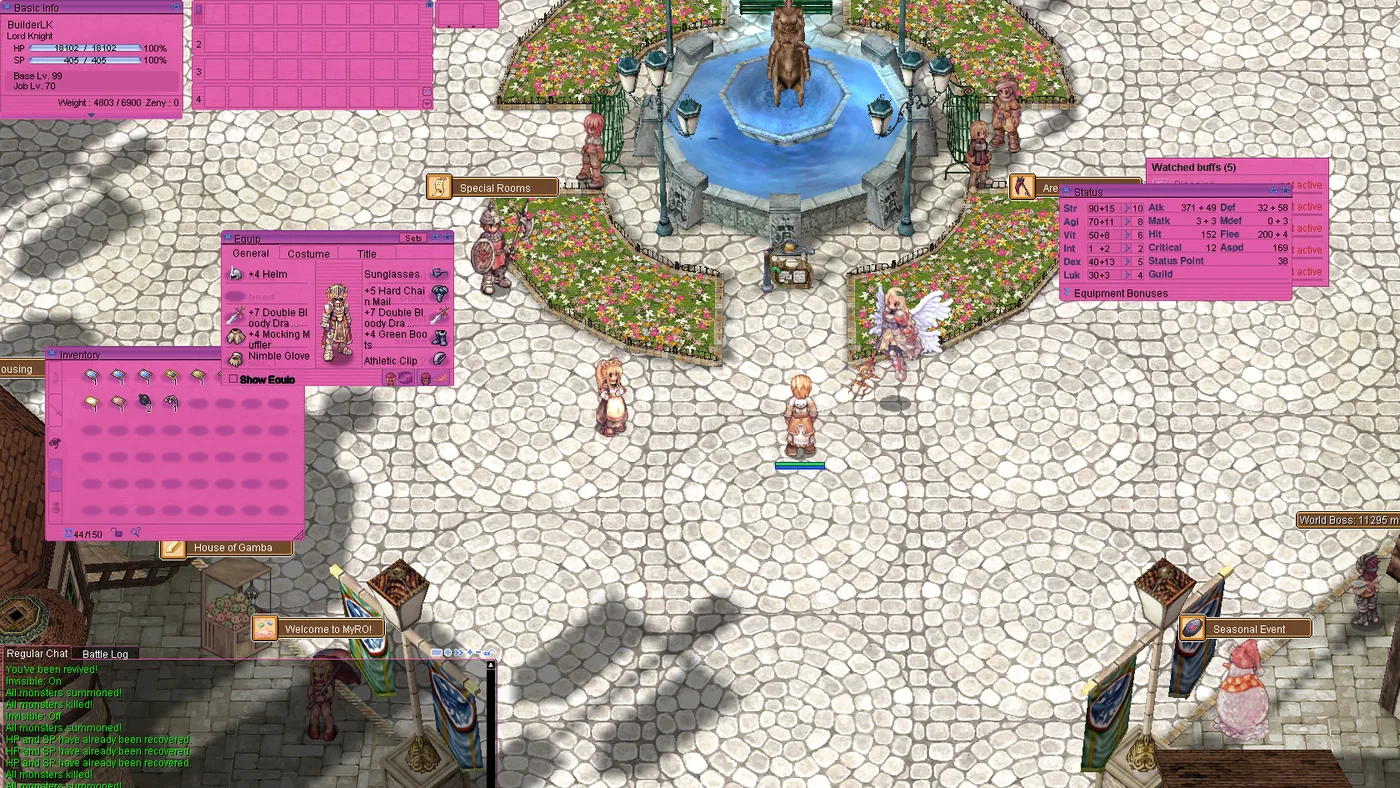
MyRO ships its own game client. Every window on this page was built for it, and every picture was taken in the game.

Settings Esc then MyRO Settings Pets /pets Wardrobe /wardrobe Sets /sets Emoji Alt+L Graymap /graymap
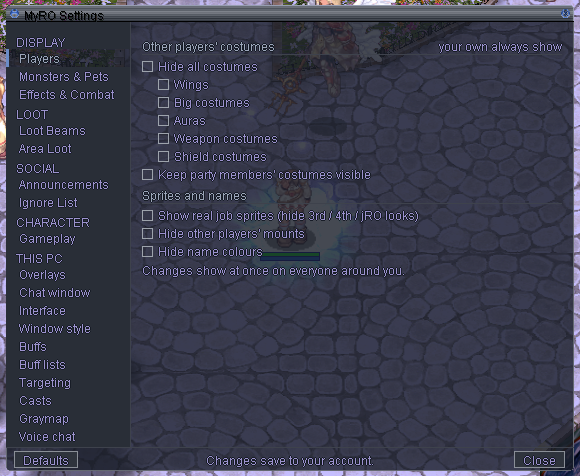
MyRO Settings

One window for every option the game never had.

Hide other players' costumes, pick which drops get a loot beam, hide refine and event announcements, scale the interface, recolour the windows. Account options save to your account, so they follow you to any PC.
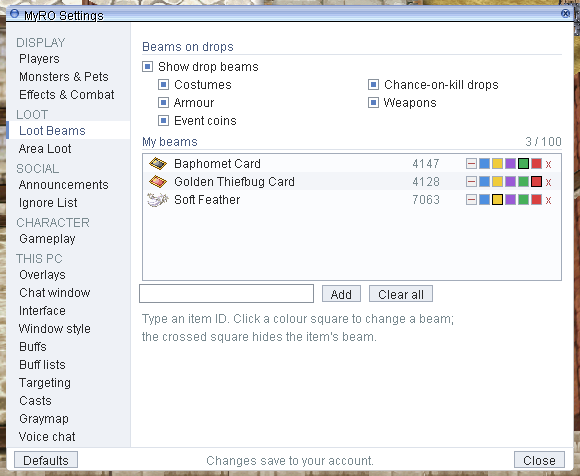
  • 18pages, from Players and Loot Beams to Casts and Voice chat
  • 100of your own loot beams, one colour per item
  • 200%UI scale for big screens
Open with Esc MyRO Settings
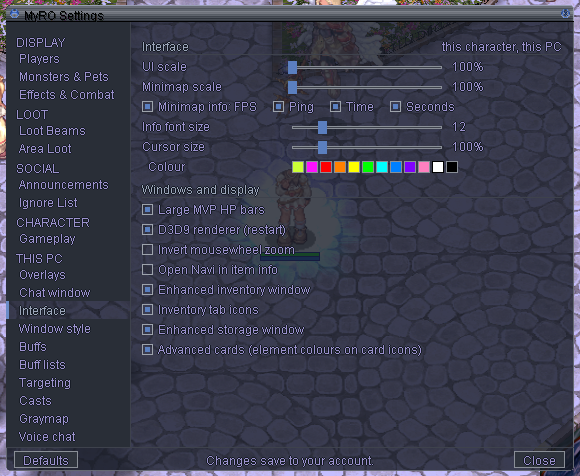
MyRO Settings, Interface page, in a dark see-through window style
Interface, in a dark window style
MyRO Settings, Loot Beams page with three item beams in different colours
Loot Beams, in Classic
Wardrobe

Try every costume you've collected, on your own character.

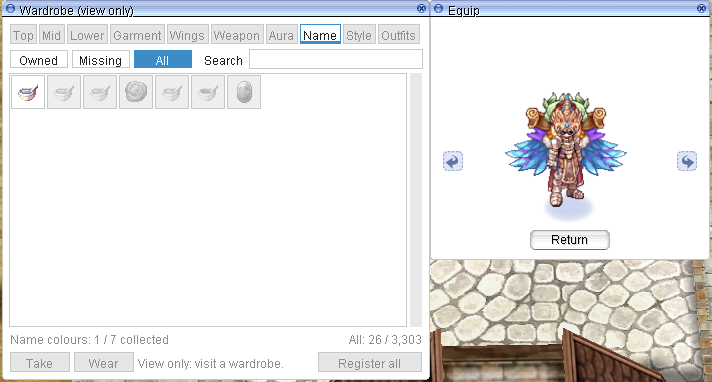
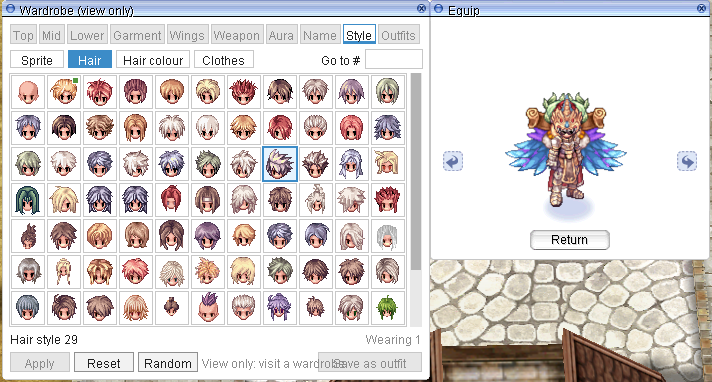
Your collected costumes in one place, sorted by slot. Click one and the preview puts it on your character. Mix headgear, wings and auras, then save the look as an outfit.
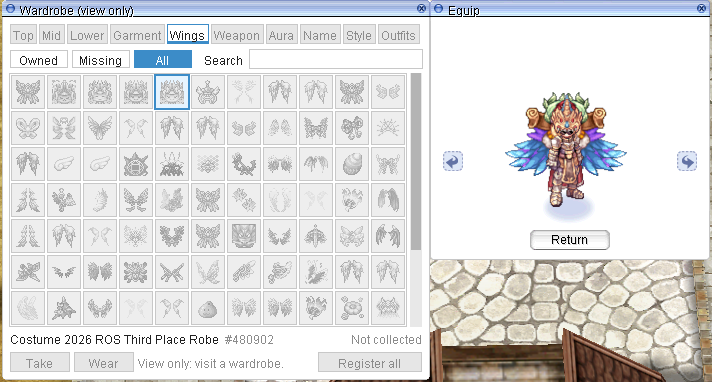
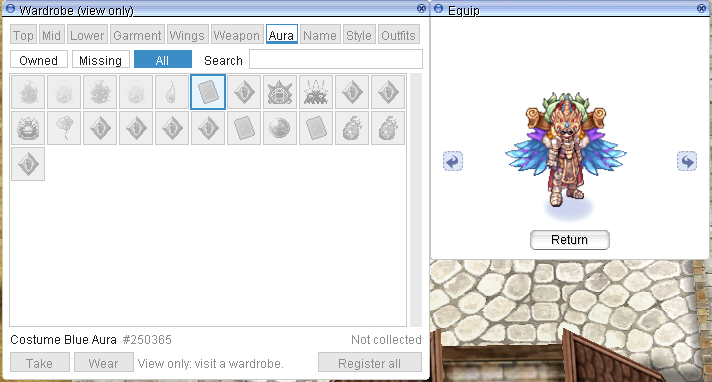
  • 10tabs: Top, Mid, Lower, Garment, Wings, Weapon, Aura, Name colour, Style, Outfits
At any wardrobe NPC, or /wardrobe to browse
Wardrobe window on the Wings tab with a Lord Knight wearing wings in the preview
Wardrobe Aura tab
Auras
Wardrobe Name colour tab
Name colours
Wardrobe Style tab with hairstyles
Hairstyles
Pet Collection

Keep every pet you raise, and dress it as any monster.

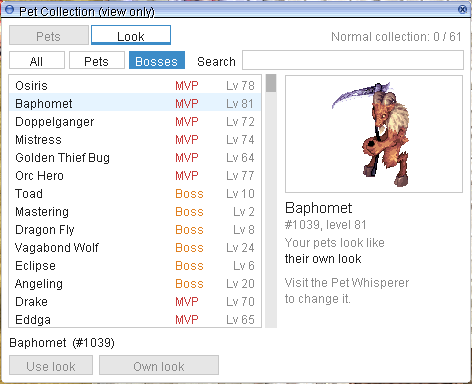
Store fully evolved, loyal pets instead of juggling eggs. The collection shows what each pet evolves from and what it needs. The look browser turns your pet into any monster in the game, MVPs included.
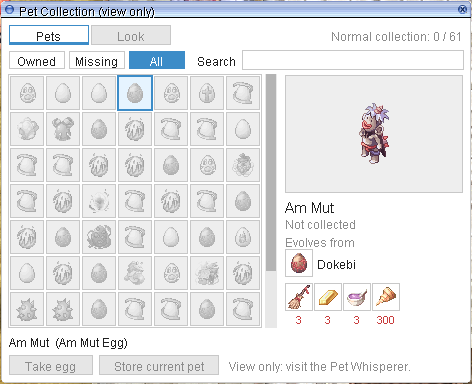
  • 61pets to collect
  • 1,198monster looks, with MVP and Boss filters
At the Pet Whisperer, or /pets to browse
Pet Collection with Am Mut selected: evolves from Dokebi, four evolution items
The collection
Pet look browser on the Bosses filter with Baphomet previewed
Your pet as Baphomet
Navigation

Monster stats, drops and prices without alt-tabbing.

Search a monster and the Navigation window shows what you'd normally look up on a database site: HP, defences, the HIT you need, every drop with its chance, its skills, and where it spawns. Item searches add the latest vendor sales.
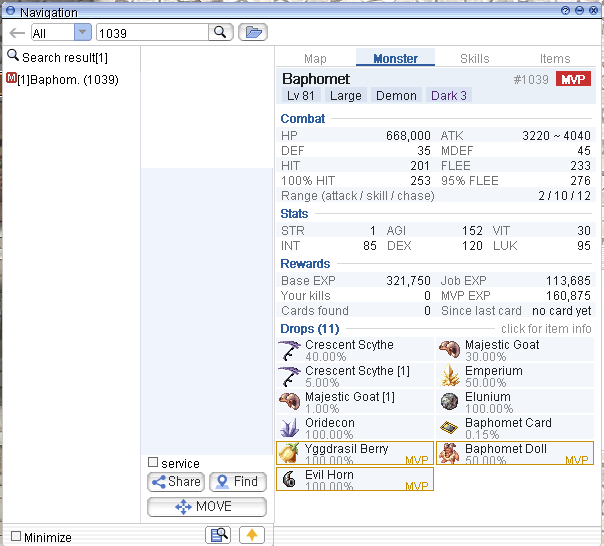
  • 100%HIT and 95% FLEE worked out for you
  • 4tabs: Map, Monster, Skills, Items
Click Open Navi on any item, or search in the Navigation window
Navigation window showing Baphomet: combat stats, rewards and eleven drops
Equipment

Swap whole gear sets in one key, and see what they add up to.

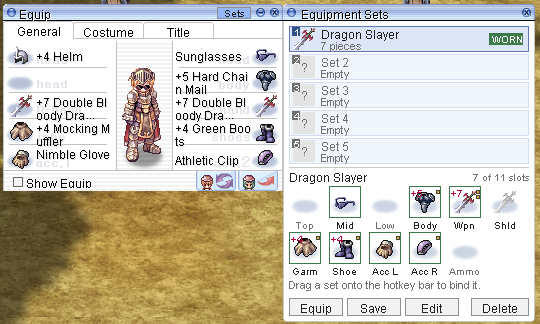
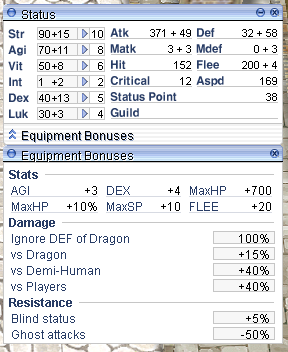
Save what you're wearing as a named set and drag it onto your hotkey bar. Equipment Bonuses lists every bonus from your gear and cards in plain numbers, like +40% against Demi-Human or ignoring a Dragon's DEF.
  • 5named sets per character
  • 11slots, each one optional
/sets for sets, Alt+A then Equipment Bonuses
Equipment window with the Equipment Sets panel: set Dragon Slayer worn, 7 of 11 slots
Equipment Sets
Status window with Equipment Bonuses: stats, damage and resistance
Equipment Bonuses
Inventory & storage

See refines, card slots and elements at a glance.

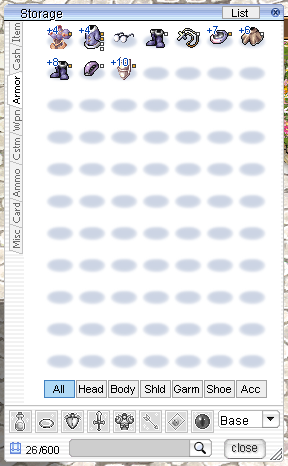
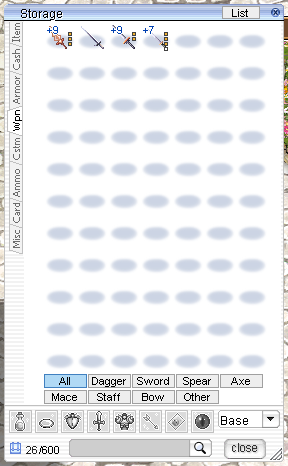
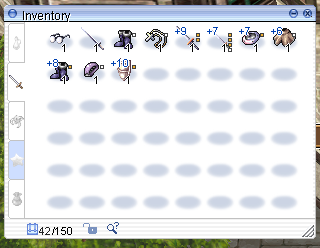
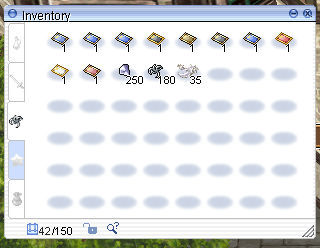
Refine levels and empty card slots show on the icons. Cards take their element's colour. A Junk tab collects loot you plan to sell, and storage gets filters for every equipment slot and weapon type.
  • 150inventory slots
  • 600storage slots, with grid or list view
Turn on in MyRO Settings then Interface
Inventory showing +9, +7 and +10 gear with card slot markers
Refines and card slots
Inventory with card icons tinted by element
Cards by element
Storage window on the Armor tab with slot filters
Armor filters
Storage window on the Weapon tab with weapon type filters
Weapon filters
Advanced Buffs

Know exactly when your buffs run out.

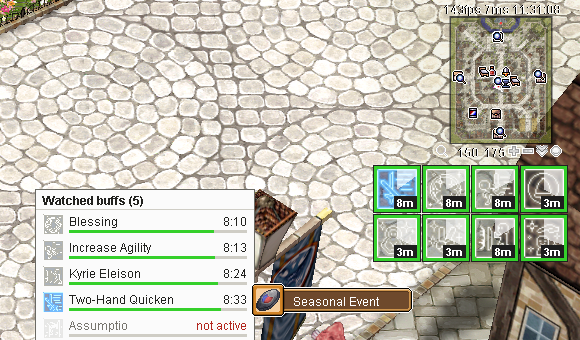
Large buff icons with timers, framed by type. Pin the buffs you care about to their own window, and it counts down in red when one is about to drop. Right-click a buff to remove it.
  • 24buffs in your watched list
  • 3icon sizes, and frames coloured by type
Turn on in MyRO Settings then Buffs
Watched buffs window with Blessing, Increase Agility, Kyrie Eleison and Two-Hand Quicken timers next to large framed buff icons
Graymap

See every cell you can and can't walk on.

Graymap swaps the map's ground for a cell grid in your own colours: walkable, blocked, water and snipeable cells. Flatten the terrain or hide buildings for a clear view in a crowded fight.
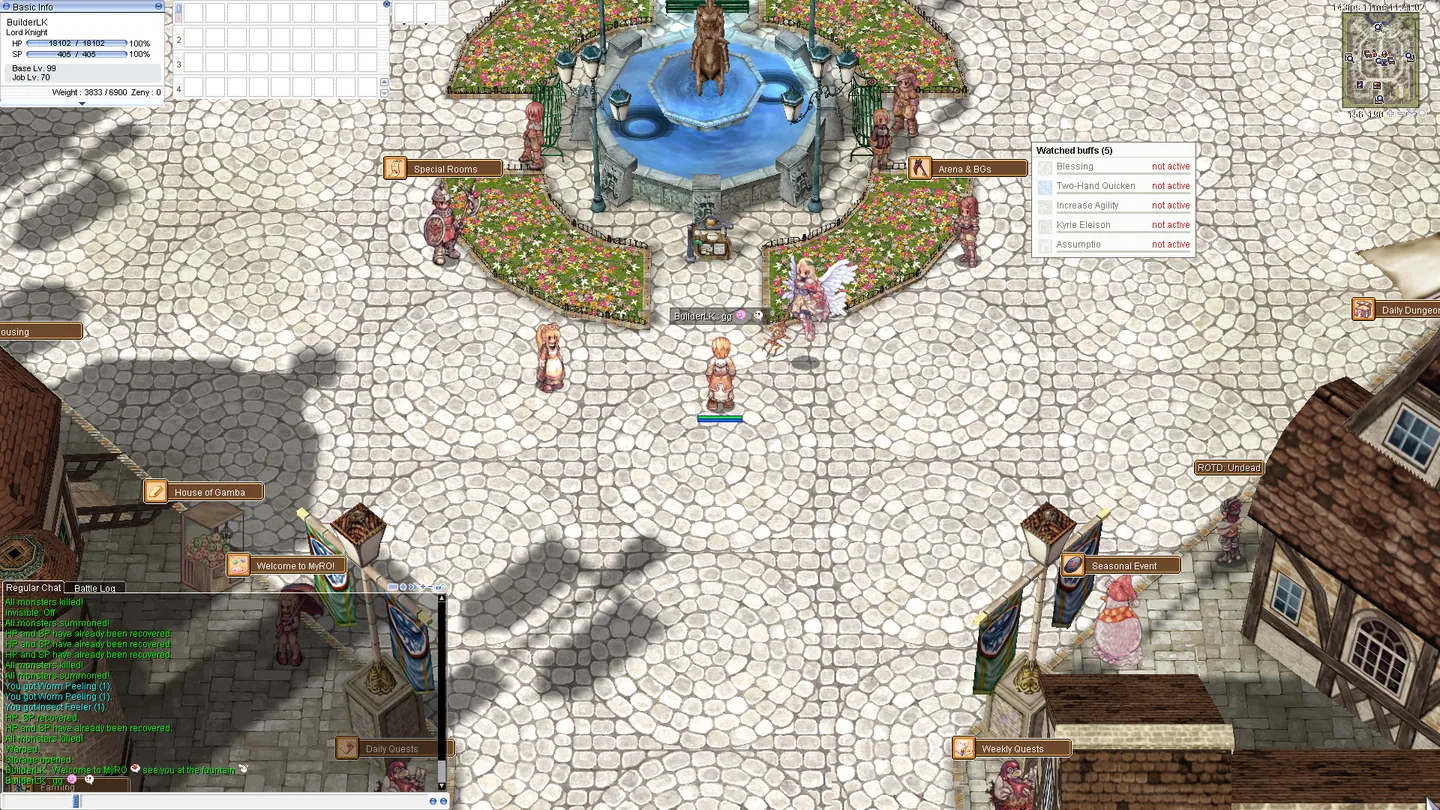
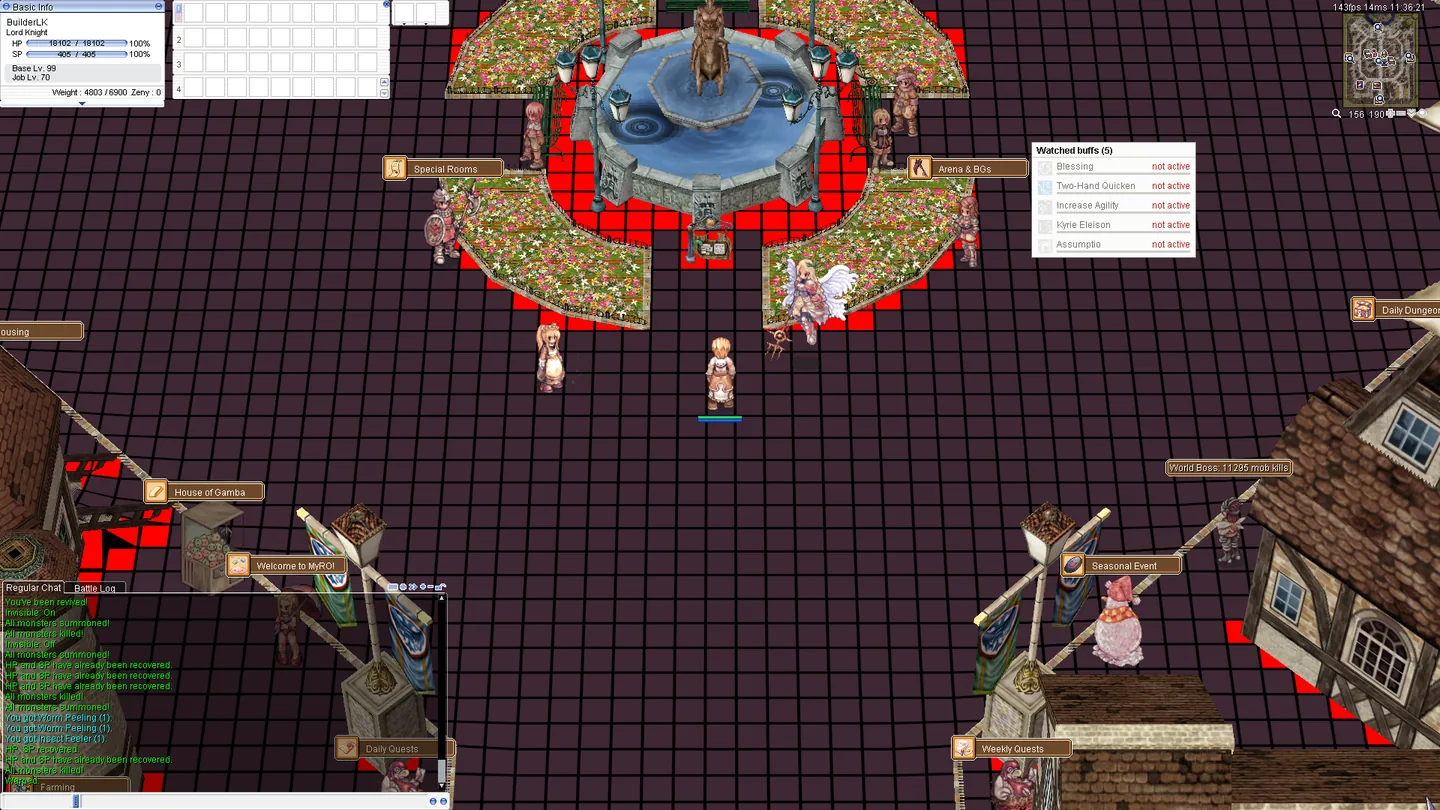
Drag the slider, or type /graymap in game
Prontera fountain, normal ground Prontera fountain with Graymap: walkable cells dark, blocked cells red NormalGraymap
Window style

Make every window yours.

Pick a preset or mix your own colour, opacity, title bar and text colour. The chat window can follow along. Name tags and speech bubbles keep their own look.
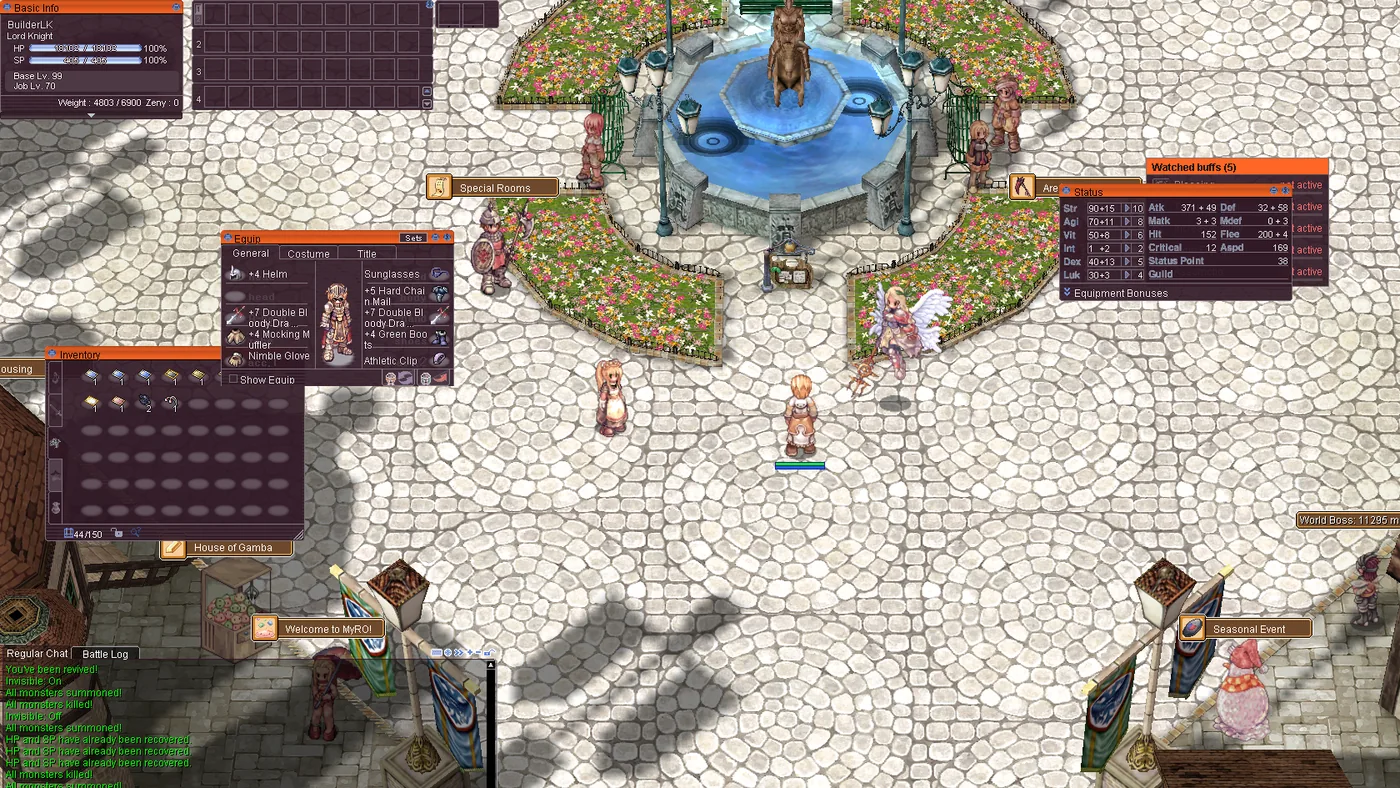
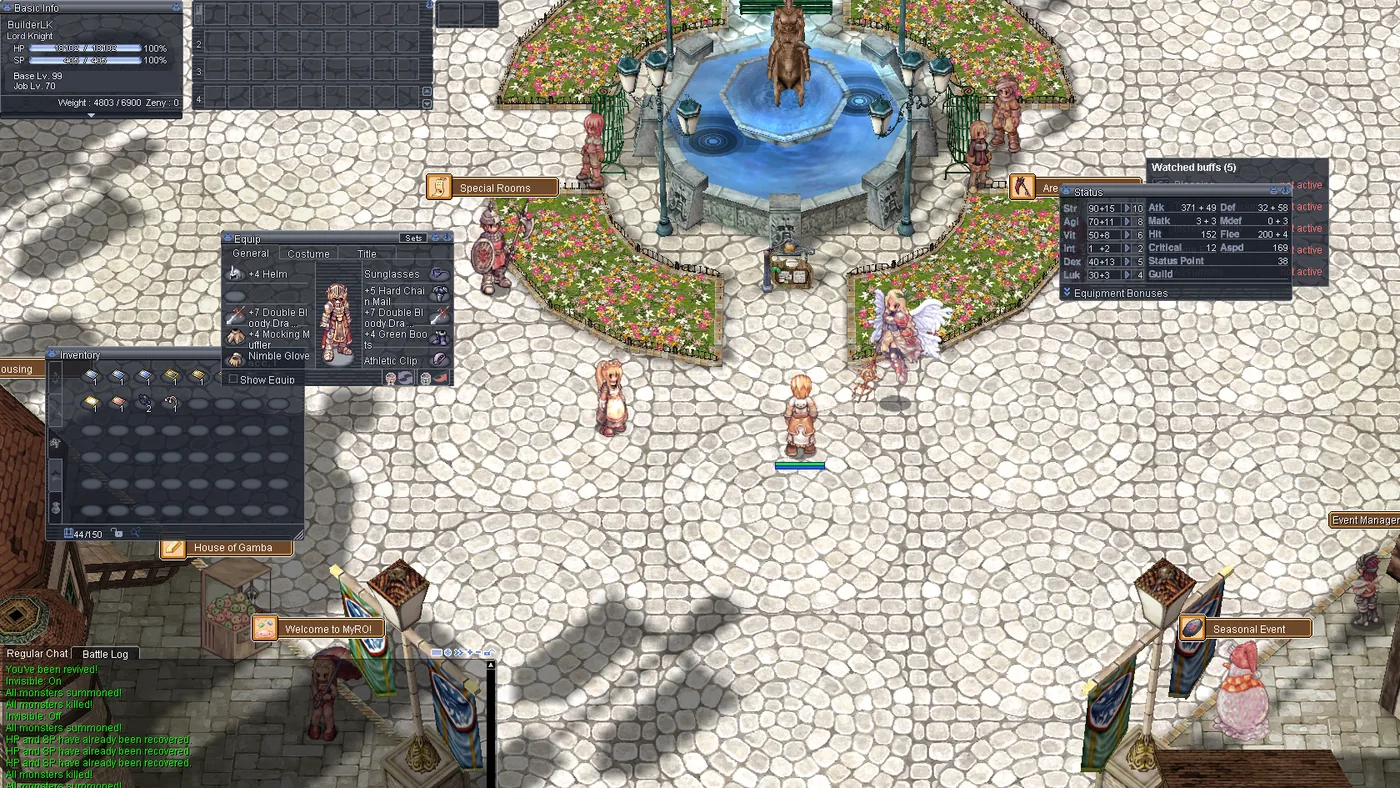
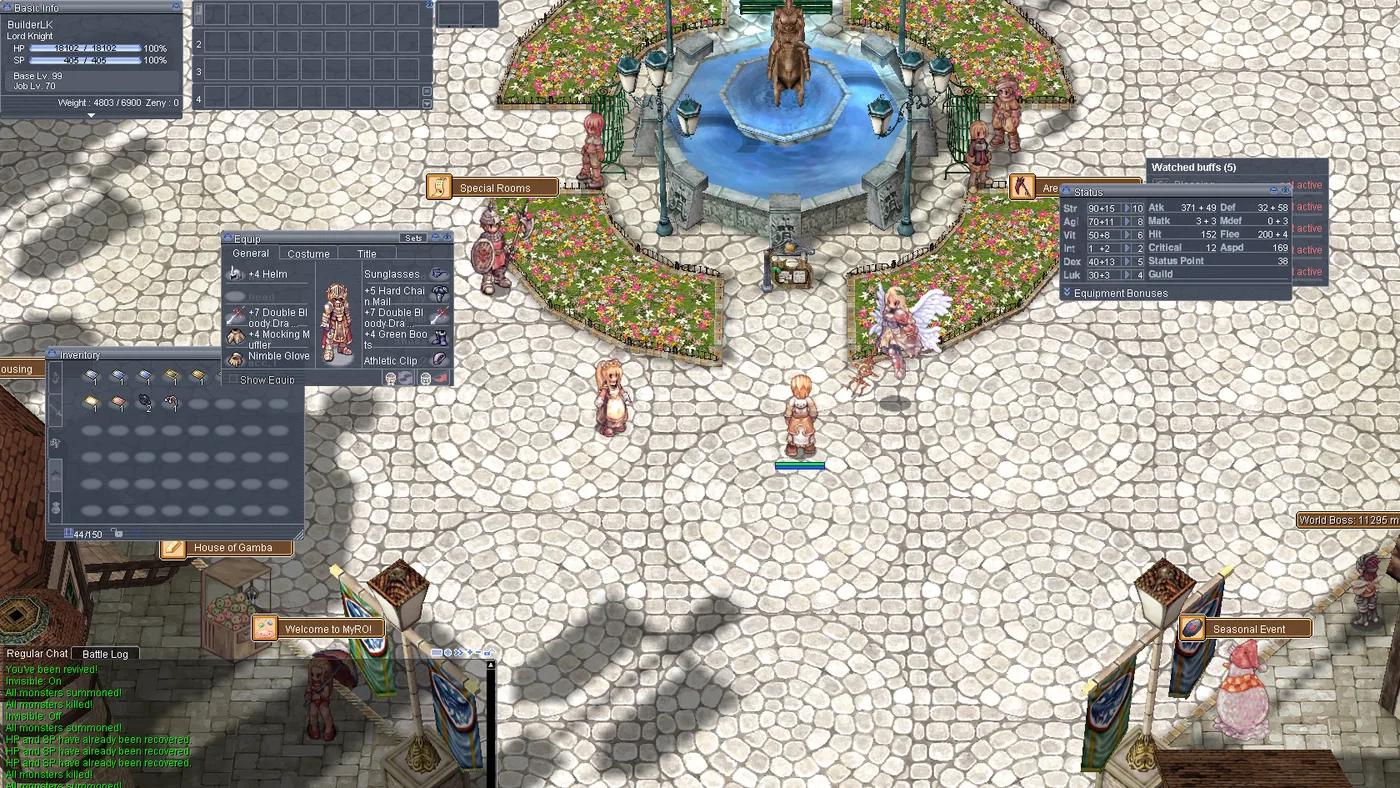
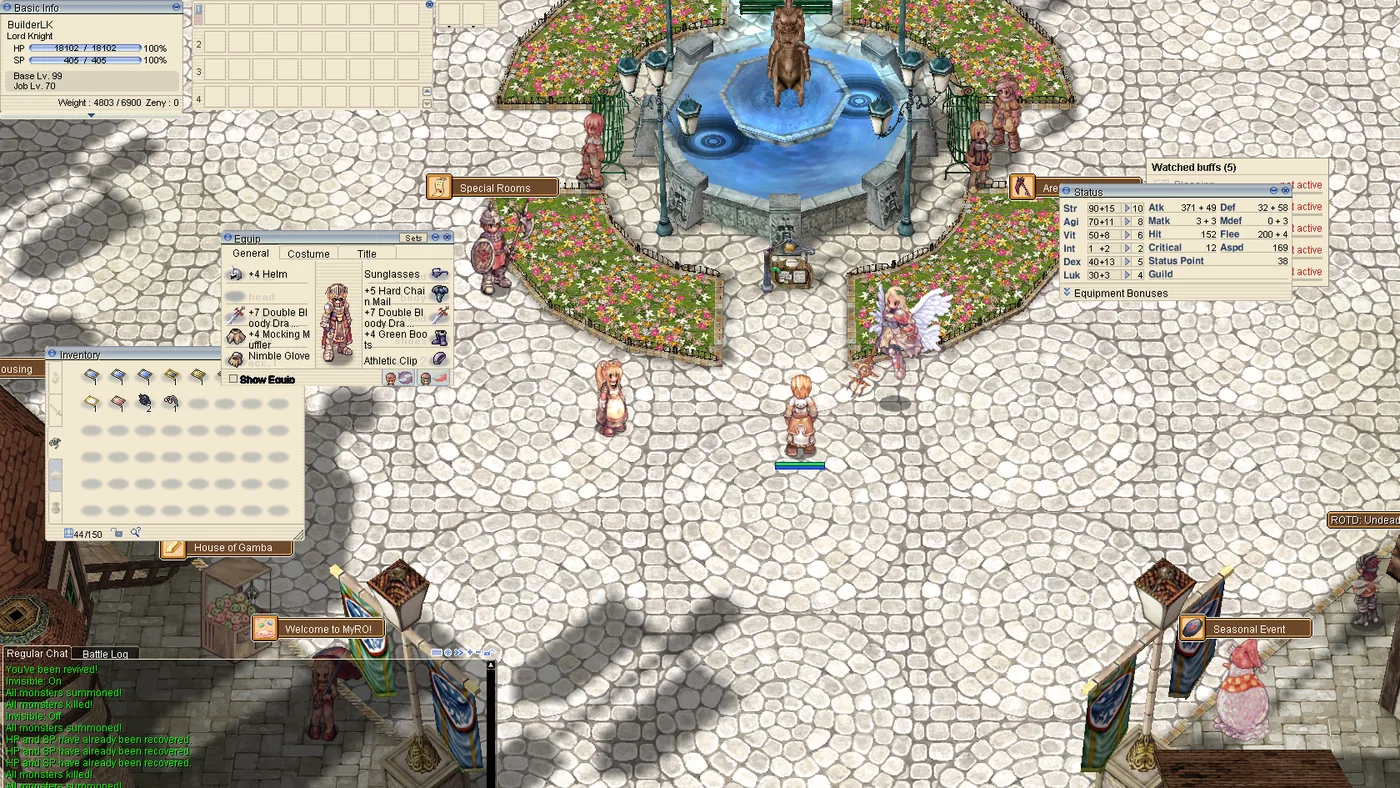
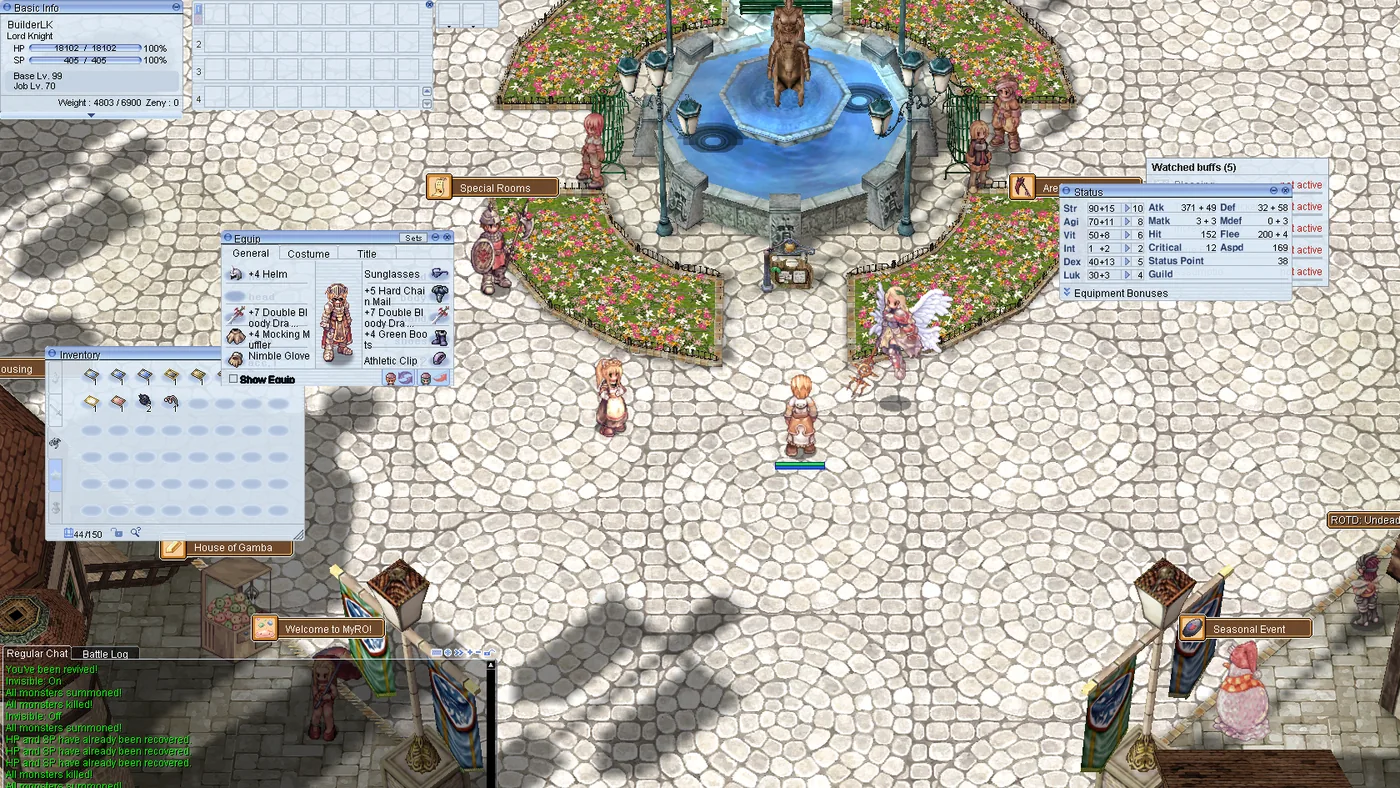
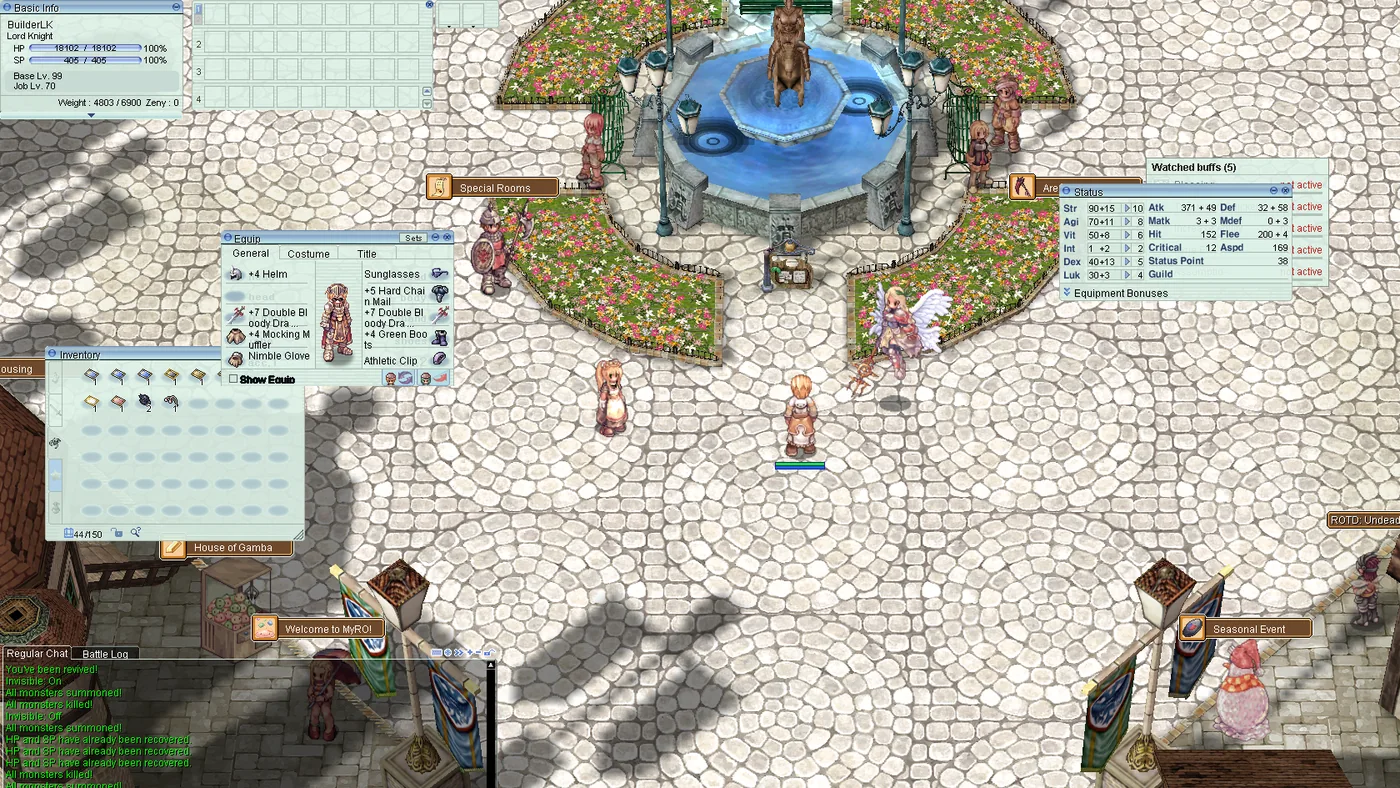
Game screen with windows in the MyRO style Game screen with windows in the Night style Game screen with windows in the Slate style Game screen with windows in the Paper style Game screen with windows in the Sky style Game screen with windows in the Mint style Game screen with windows in the Rose style
And the small things

Little fixes you'll notice every day.

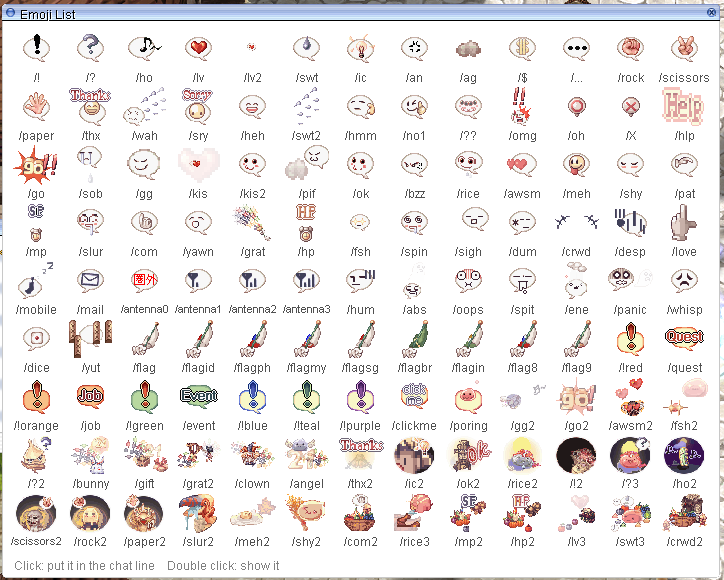
Emoji List window with every emote and its command

Every emote on one page

All 117 emotes with their commands, including the ones the game hid. Click one to put it in the chat line. Open with Alt+L.
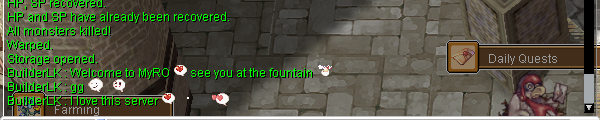
Chat lines with heart and smile emotes inline

Emotes in chat

Type :lv: or :gg: and the emote shows in the chat window and over your head.
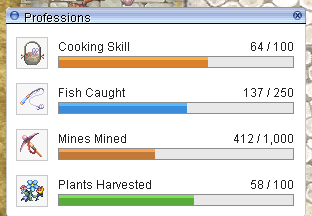
Professions window: Cooking 64/100, Fish Caught 137/250, Mines Mined 412/1,000, Plants Harvested 58/100

Professions

Cooking, fishing, mining and farming progress toward the next goal. /professions
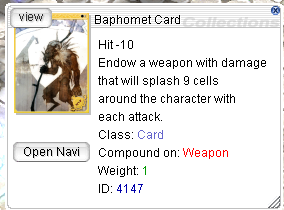
Baphomet Card description with its card art and an Open Navi button

Card art in item info

See the card's picture right in its description.
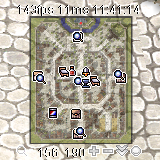
Minimap with FPS, ping and server time above it

FPS, ping and time

A small line above the minimap, each part optional.
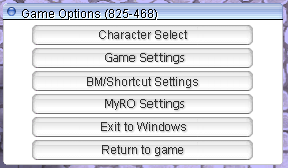
Game Options menu with a MyRO Settings button

Right in the Esc menu

MyRO Settings sits next to the game's own options.

All of this comes with the MyRO client.

Install with the MyRO patcher. It keeps your client up to date, so new windows arrive by themselves.

Download MyRO